
Klikat Screen Recorder
Klikat Screen Recorder icon

Record your Mac screen.
Send it in seconds.

Frame the shot before you press record. Talk over it with your camera in the corner. Draw on the screen while you explain. Then share a file small enough to paste straight into chat.

macOS 15 or later · No account · Nothing leaves your Mac

The Klikat control bar with a Record button and the capture size
Set the region, check the size, then record. Nothing is captured until you press the button.
Why people switch

Three things most recorders get wrong

📐

You can't aim before you shoot

Klikat shows a resizable frame first. Move it, resize it, check the exact pixel size — then hit record. No throwing away takes because the crop was wrong.

ðŸŠķ

The files are enormous

Klikat encodes in HEVC on the GPU and skips frames where nothing changed. In our test, the same clip came out at 683 KB instead of 1,090 KB — and a still screen costs almost nothing.

✍ïļ

You can't point at anything

Draw on the screen while you record: pen, highlighter, arrows, boxes. Highlight the cursor and show clicks, so people can follow what you're doing.

Features

Everything you need, nothing you don't

A menu bar and Dock app that starts instantly and stays out of the way.

Frame it first

A region you can actually adjust

Drag a red frame anywhere, on any monitor. Move it, resize it from any edge, and it comes back where you left it next time.

  • Region, single window, or a whole display
  • Works across multiple monitors and Retina displays
  • Countdown before recording starts, so you can get into position
Control bar showing Record and the exact capture size
Explain as you go

Draw on the screen, live

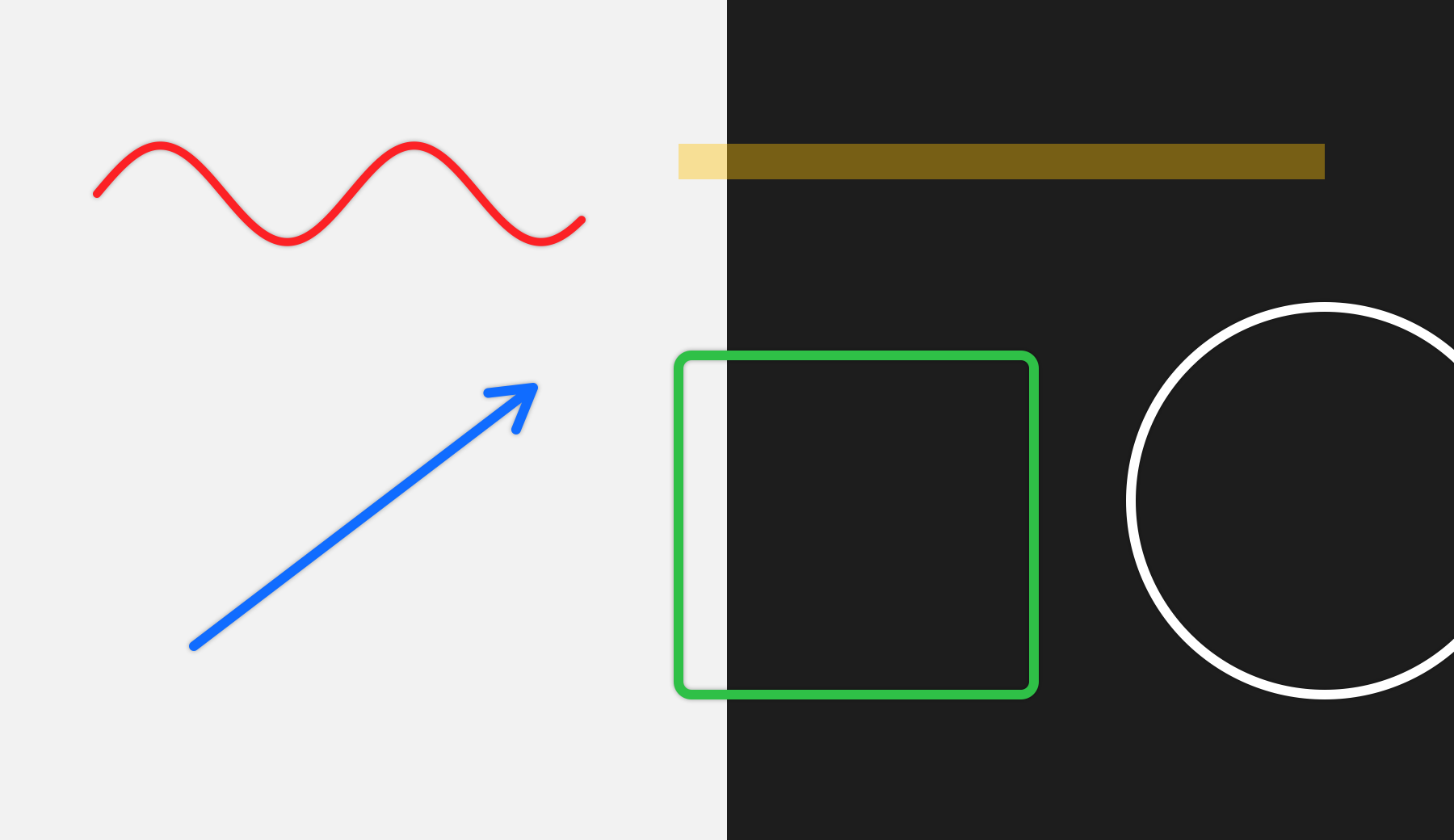
Circle the button you mean. Point an arrow at the error. Highlight the line of code. It all lands in the recording, and can fade away on its own a few seconds later.

  • Pen, highlighter, arrow, rectangle, ellipse, six colours
  • Undo with ⌘Z, clear with ⌘âŒŦ, leave with Esc
  • Works during a recording, or on its own while presenting
Pen, highlighter, arrow, rectangle and circle drawn on a screen
Be in the video

Your camera, in a bubble you can move

A floating circle of your webcam, dragged wherever it doesn't block anything. Built-in camera, an external one, or your iPhone via Continuity Camera.

  • Three sizes, mirrored or not
  • Record system audio, your microphone, both, or neither
  • Cursor highlight and click rings so people can follow along
The drawing toolbar with tools, colours, undo and clear
Pro · Share without the drag and drop

Uploads itself, hands you the link

Stop a recording and it goes straight to your own storage while you carry on working. The share link lands on your clipboard, ready to paste.

  • Your own Amazon S3 bucket — or Cloudflare R2, Wasabi or MinIO
  • Google Drive, into a folder you choose
  • Time-limited signed links, so nothing has to be public
  • Keys live in your macOS Keychain; files go to your account, never ours
Upload progress in the Klikat menu
Fix it while recording

Pause, think, carry on

Pause when the phone rings or a page is loading, then resume. The paused stretch is cut out of the video, so there's no dead air to edit out afterwards.

  • Pause and resume from anywhere with ⌘⇧1
  • Stop with ⌘⇧2 — the file opens in Finder and is copied to your clipboard
  • MP4 or MOV, HEVC or H.264, 15 to 60 fps
Control bar with timer, pause and stop
Measured, not claimed

Small files, by design

Hardware HEVC encoding, and frames that don't change are never stored.

~40%
smaller than H.264 at the same settings, in our test clip
0 KB
roughly what a still screen adds while you talk
1×
optional Retina downscale, about half the size again
Compared with

The screen recorder already on your Mac

QuickTime is free and fine for a quick capture. Here's what it doesn't do.

 QuickTimeKlikat
Adjustable region you set before recordingDrag once, no adjustingResizable frame, remembered
Camera in the recordingSeparate recordingFloating bubble
Draw on screen while recording—Pen, arrows, shapes
Cursor highlight and click effects—Included
Pause and resume—Gap removed from the video
System audioNeeds extra softwareBuilt in
File sizeLarge H.264 filesHEVC, idle frames skipped
Pricing

Free for short clips. $19.99 a year for everything.

Try Pro free for 7 days. Cancel any time, in one click.

Free

$0
  • Region, window and display recording
  • Camera bubble, cursor effects, audio
  • Pause, resume and countdown
  • Recordings stop at 5 minutes
  • Small watermark on the video
  • No drawing on screen
  • No automatic upload
Download free

Pro monthly

$3.99 / month
  • Everything in Pro
  • 7 days free, then $3.99/month
  • For a single project or a busy month
Start free trial

Subscriptions are billed through the App Store and renew automatically unless cancelled at least 24 hours before the period ends. Manage or cancel in System Settings ‹ Apple Account ‹ Subscriptions. Refunds are handled by Apple.

Questions

Before you download

Do my recordings go anywhere?

No. Everything stays on your Mac, saved to a folder you choose. Klikat has no account, no cloud and no analytics, and doesn't need an internet connection to record.

What do I get in the free version?

The real app, not a demo: region, window and display recording, camera bubble, cursor effects, audio, pause and countdown. Free recordings stop at five minutes and carry a small watermark, and drawing on screen is a Pro feature.

Where do uploads go?

To storage you own: your own S3 bucket (or an S3-compatible service like Cloudflare R2, Wasabi or MinIO), or your Google Drive. Klikat has no servers in between — your credentials stay in your macOS Keychain and the file goes straight from your Mac to your account.

What format are the files?

MP4 or MOV, your choice, encoded in HEVC (H.265) for the smallest size or H.264 for maximum compatibility. Both play in QuickTime, Finder previews, and every major editor.

Does it work with multiple monitors?

Yes — record any display, or frame a region on any of them. A single region can't span two monitors, because macOS captures one display at a time.

Why does macOS ask for permission?

Any app that can see your screen needs your explicit permission, which is a good thing. You grant it once in System Settings, and again only if you want the camera or microphone.

Can I cancel?

Any time, in System Settings ‹ Apple Account ‹ Subscriptions. You keep Pro until the end of the period you've paid for, then the app carries on working as the free version. Your recordings are yours and are never touched.

Record something in the next two minutes

Download it free, no account, no card. See if it fits how you work.

Download for macOS

macOS 15 or later · Apple silicon and Intel
